Followers

Saturday, June 23, 2018

How to add Live chat box, Subscription box and many more in Blogger

How to add Live chat box, Subscription box and many more in Blogger

Add Subscription, Live Chat Box And More Things In Blogger


Hey Guys, are you wondering to add live chat, subscription box. You have been searched a lot but your destination will end here. I will be talking to you about adding such things in Blogger. In this, you will be known to add live chat box in Blog websites or other websites too. I will also teach you to install the chat box to your blogs.

1. Add Subscription Box 
Actually, it's very important. One should have a good amount of followers to build up the websites. Here is some instruction. Do follow and add those things easily on your blog websites. 
1. First, log in with your Gmail or google address in http://app.getsitecontrol.com.
2. Click On create a widget and your preview will be shown.
3. Now you can decorate your subscription box as you want.
4.  You can set how much time will it appear in each visitors, you can set time to view it.
5. After customizing all those things just go down and click on ok.
6. Activate the widget. Now go to websites and check it.

2. Add live chat widget

Similarly, it's important to chat with visitors for good relationship of websites. It will increase your traffic and bounce rate will decrease too. It also helps to increase the time per visitors. Know how to add this.
1. First, log in with your Gmail or google address in http://app.getsitecontrol.com.
2. Click On create a widget and your preview will be shown.
3. Subsequently, customize the widget as you like.
4. You can add what to say on first when visitors started chatting.
5. After all, click on ok and then activate the widget.

3. Add Push Notification
Push notification is another features which actually increase more amount  of visitors. There are  hundred of websites online where you can add this features. One of best websites is pushengage.com.  In this websites you will be able to organize more amount of subscriber.

Problems 
The code cannot be saved in blog HTML
Hey there, this is one of the problems. It actually happens when your template is not compatible for editing and customizing. You can simply change the theme. After that it's all right, just add the code.

Some Questions( Write the answer in Comment)
1. Who is known as blog scientist in India? (Write Author name and websites URL)
2. Which are the highest earning websites in the world?
3, Can you guess the position of youtube.com websites in this world, Write the answer in Comment?

Offer:- If all the three questions answer will be correct you will get some prizes.


Tuesday, June 19, 2018

How to create animated games in powerpoint

How to create animated games in powerpoint

Things to be considered while making this games: -
1. Hyperlink- You can be known about the hyperlink while creating the games. Actually, hyperlink helps to redirect the slide text to another selected slide. You should use this nicely while creating.


    1. Right-click on selected text
    2. choose hyperlink and selected slide where you want to redirects.
                                                 

2. Transitions- You should know well about the transition. It helps your slide text, slide and make animated and provide a good look. You should learn about the tutorials transitions. Without this, you cannot understand the tutorials on making games.
3.Animation- It is another part of the games to make it nicer and good looking. It animated the text in a different position.
To apply animation:-
               a. Select the text or object that you want to animate.
              b.On the Animations tab, in the Animations group, click Custom Animation.
              c.From the Custom Animation task pane, click Add Effect, and then add one or as much of the following:
How to create?
You can see above videos and can know to create games Or follow the instruction below.
Decorate 1st Page:-

First, take a new slide and write the topics and at all. Add the transitions to the slide as nice as you can. Now add the text and required picture if you need. Add the animation to the text and make it decorative and decorate your page layout. Add a timer to show your slide slow or fast.

Pages:-You can add pages how much you required or want. Just apply a transition to all the slide with a timer option. Now decorate all the text and add animation to all the text and pictures. Now if you want to add hyperlink then you should have other pages below or up the recent page. Select the text and apply the hyperlink.
Get my animated template:-
Some main options in powerpoint:-
Animation Pane- This is one of the useful functions powerpoint. It helps to manage all the text, pictures in the certain slide. You can set the timing of text, picture. You can set when to display text i.e after or previous. You can add sound.

Formate:- You can add different types of layout to the text, picture, an object etc. You can also apply varieties of effect to your text, picture.


Thursday, May 31, 2018

How to fix Adsense does not meet criteria

Adsense

Adsense is the big Company who need non-violent and attractive and easy navigation system. Your websites should be responsive so that viewers can be easily known about the content. It needs a websites having good content and some traffic should be needed.

Dear Viewers,

This is Adsense criteria. Here are the policy and rules to be followed by everyone. Click The link.
Adsense Program policies

Above given policy should be used by all the blogger and other websites builder too.
This is the reason to get disapproved. Due to program criteria, they get disapproved. If this occurs then it means you websites are cheating others and has no original content.

Some of your mistakes:

Plagiarism: You used to copy and paste the article. This leads to plagiarism and your Adsense get rejected. Here are the tricks to copy article without plagiarism.
 a. Just copy the content and use google translate. Translate the article into Hindi language and again change Hindi article into English. If you do you will not get disapproved i.e no plagiarism.

Duplicate content: Google will never accept a blog that that features copied or scraped content. If you’ve copied an article from other site and published it on your blog, no matter how many times you apply for AdSense, your blog will never get approved. So make sure that your site is free from duplicate content. You can use tools like Copyscape or indicates to find duplicate lines, statements or paragraphs in your blog posts.

Little traffic: The best and the easiest way to get an approved AdSense account is to create 4 to 5 best high-quality blog posts and posts as much as good content to your websites. Once your site starts getting 1000+ visitors from Google or Bing search engines, submit an AdSense application and ads will start showing on your blog.

Direct Links: Don't add other direct links like- other youtube videos and any links to download films, games, software. Don't add other links.

Invalid Click: Don't use tricks to see your own websites, again and again, many times.
4. Don't force other to subscribe your blogs. It means don't add popup email before Adsense approve.

How to fix it?
1. At first turn off your Adsense in earning tab, and lookout all your posts.
2. Remove plagiarized i.e copied article and use your own article or use the above tricks.
3. Remove all videos and direct links from your websites.
4. Add privacy policies, disclaimer, contact us page and add cookies to your websites. ( From siltride.com )
5. Remove page which violet policy and fix it.
6. Remove other infected links.

Or 
7. Just start your journey from first i.e delete all pots and start from first.

Why I Do?
So bloggers do concentrate here. Don't copy other articles. Adsense takes it as a crime. So don't do that from today and work yourself with hard work.

Complainant- If you have any other questions just ask in the comment below And If you find it's informative please share on social media too!

Tuesday, May 29, 2018

Cannot add YouTube Videos in Blogger-WHY?


Why this happen?

This happens when you youtube channel got suspended or terminated. This problem will automatically be solved in 1 Months.

Solving Tips
This problem just occurs in the blogger. When you tried to add videos in blogger from youtube. It says " No Videos". This is the problem in which blogger is working. Don't worry about that blogger expert is working on
this problem and we hope that it will solve fast.

How to add YouTube Videos Now?
To add youtube videos just download your video. Just upload your videos from the computer.
Or  
You can add thumbnail image and just add the link to your videos and it will automatically redirect to your youtube videos.


Websites to create thumbnails:


Canva.com

1. You can turn any YouTube video into a GIF using the URL.

Everyone loves GIFs, but knowing how to make them isn't common knowledge. Well, it should be, because all it takes is a little YouTube URL trick.
Ways to create gifts from youtube videos- At  first, select videos to watch on YouTube  and find the URL of your videos at the top of browser add the word "gif" right before the domain name so it reads, "www.gifyoutube.com/[your-video-tag]."
This will bring you to gifs.com, with your video already uploaded and ready for editing. Here, you'll find a menu of options to the left-hand side with a timeline bar along the bottom of your video. You can set the GIF duration, crop its frame, add captions, and more.
Click "Create GIF" on the top-right and it'll be set for a GIF title and set of tags. Then click "Next," and you have a handy landing page from which to share your newly minted GIF. You can only download this GIF to an offline file by signing up in gifs.com.

Saturday, May 26, 2018

Some Video based Template for blogger


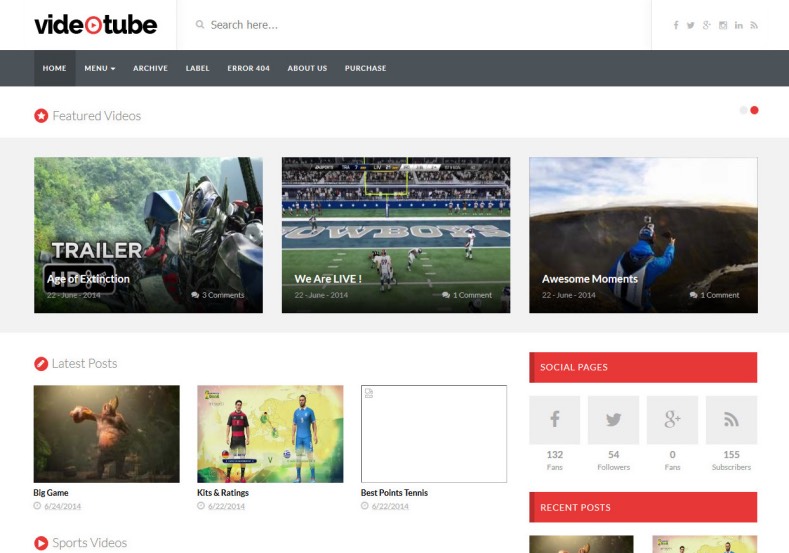
.Video Tube ( free version)
It is one of the best templates for a blogger for videos. Here you can get amazing stylist theme for your blogs.
VideoTube Responsive Blogger Template. Free Blogger templates. Blog templates. Template blogger, professional blogger templates free. blogspot themes, blog templates. Template blogger. blogspot templates 2013. template blogger 2013, templates para blogger, soccer blogger, blog templates blogger, blogger news templates. templates para blogspot. Templates free blogger blog templates. Download 1 column, 2 column. 2 columns, 3 column, 3 columns blog templates. Free Blogger templates, template blogger. 4 column templates Blog templates. Free Blogger templates free. Template blogger, blog templates. Download Ads ready, adapted from WordPress template blogger. blog templates Abstract, dark colors. Blog templates magazine, Elegant, grunge, fresh, web2.0 template blogger. Minimalist, rounded corners blog templates. Download templates Gallery, vintage, textured, vector, Simple floral. Free premium, clean, 3d templates. Anime, animals download. Free Art book, cars, cartoons, city, computers. Free Download Culture desktop family fantasy fashion templates download blog templates. Food and drink, games, gadgets, geometric blog templates. Girls, home internet health love music movies kids blog templates. Blogger download blog templates Interior, nature, neutral. Free News online store online shopping online shopping store. Free Blogger templates free template blogger, blog templates. Free download People personal, personal pages template blogger. Software space science video unique business templates download template blogger. Education entertainment photography sport travel cars and motorsports. St valentine Christmas Halloween template blogger. Download Slideshow slider, tabs tapped widget ready template blogger. Email subscription widget ready social bookmark ready post thumbnails under construction custom navbar template blogger. Free download Seo ready. Free download Footer columns, 3 columns footer, 4columns footer. Download Login ready, login support template blogger. Drop down menu vertical drop down menu page navigation menu breadcrumb navigation menu. Free download Fixed width fluid width responsive html5 template blogger. Free download Blogger Black blue brown green gray, Orange pink red violet white yellow silver. Sidebar one sidebar 1 sidebar 2 sidebar 3 sidebar 1 right sidebar 1 left sidebar. Left sidebar, left and right sidebar no sidebar template blogger. Blogger seo Tips and Trick. Blogger Guide. Blogging tips and Tricks for bloggers. Seo for Blogger. Google blogger. Blog, blogspot. Google blogger. Blogspot trick and tips for blogger. Design blogger blogspot blog. responsive blogger templates free. free blogger templates. Blog templates. VideoTube Responsive Blogger Template. VideoTube Responsive Blogger Template. VideoTube Responsive Blogger Template.
Live Preview                                          Download

Here is a feature-
1. Responsive template.
2.Adsense based template
3. Text font option
4. 100 % free
5. Responsive sidebar and footer.
6. Stylist navigation bar.
7. Attractive looks

2. Video Tube( Premium Version)
 With the premium version, it has premium features too !.  It is one of the popular version templates for videos. Here are many features-
Here are the features-
Styles: • Portfolio • Simple• Clean • Modern • Wordpress Themes Looks• Elegant  • Gallery • 3D Style • Stylish Magazine • Minimalist 
Topics: Movie  • PhotographyPages • Music • • Culture • Personal  Video • Business • Fashion • Games• Anime • News
Columns: 1 Colum • 2 Columns • 3 Columns • 4 Columns

Note-If you want to create simple blogger websites with page and navigation bar then you can consult with me, I will do it freely.
For decorative blog
Price- 5 $ and 1 $ extra for domain
For customization
If you want to customize your websites nicely then Fee is 1 $

Videos cloud ( Latest And Best)
The template 'Video  Cloud' has launched in 23rd may. Is the latest and best videos template. Its price is 49 $ and it has become most selling template Now. Here we can get thousands of features.
VideoCloud
 Free Version Demo                                               Premium Version Demo

Download

How to buy?
1. Go to the link
2. Click On Buy template and it will redirect to login.
3. Just create the account and but it.
4. Or if you are confused to choose then you can buy all template in just 69 $.
5. You can download free version also
You can check free vs premium features also.

Features
1. Mobile Friendly.
2. Theme Customizer.
3.Localisation / Translation ready
4.Clean  Code
5. Speed optimized
6.SEO


Note-If you want to create simple blogger websites with page and navigation bar then you can consult with me, I will do it freely.
For decorative blog
Price- 5 $ and 1 $ extra for domain
For customization
If you want to customize your websites nicely then Fee is 1 $

4. Fast Blogs


Fast Blog Blogger Template is a smooth and sophisticated blogger template perfect to create professional blog with ease. It is fully responsive, widget ready and has many powerful features. The Fast blog template is exceptional for a news, newspaper, magazine or publishing site. It uses the best clean SEO practices, and on top of that, it’s fast, simple, and easy to use. In addition, Fast blog supports responsive Google Ads and AdSense.Overloaded with useful widgets it has attractive social sharing options, carefully contrived elements create a perfect and conflicting blog for you, making it the perfect choice from a simple blog to a big, content heavy news portal. The fast blog is overloaded with structures and has prevailing customization options. The fast blog is overloaded with lots of specialized and beneficial widgets like Featured Post, Popular Post, Multilevel Dropdown Menu/Mega menu, Email Subscription and many more

Download video cloud template premium version for free

Download video cloud template premium version for free

Videos cloud ( Latest And Best)

The template 'Video  Cloud' has launched in 23rd may. Is the latest and best videos template. Its price is 49 $ and it has become most selling template Now. Here we can get thousands of features. This template has overloaded features for users improvement. This is trending template and verified as the best video template of this years. You can get free service and can ask them to customize in your own way.
VideoCloud
 Free Version Demo                                               Premium Version Demo

Download

How to buy?
1. Go to the link
2. Click On Buy template and it will redirect to login.
3. Just create the account and but it.
4. Or if you are confused to choose then you can buy all template in just 69 $.
5. You can download free version also

You can check free vs premium features also.

Features
1. Mobile Friendly
2. Theme Customizer.
3.Localisation / Translation ready
4.Clean  Code
5. Speed optimized
6.SEO

Mobile Friendly
This is one of the best features of this template. It is mobile friendly and easy navigation system to understand by the viewers. You can customize this as well and can get the best theme for it.

Clear Code
This template has the clear code, Any websites builder can notify and can change the navigation and other things easily.

Speed Optimized
 This template is very speed. It will smoothly with high speed. This template has more and more features.

Template created by me
Name- SUBTECH
 Download Link
Preview
This template is designed by me. This template is responsive and customized nicely. This template is especially for news and designer. It has best features. Users can get benefited by this template. It is also users friendly and had good speed. This template provides clear code, you can customize it too !.
Here are the features:

Features
1. Mobile Friendly.
2. Theme Customizer.
3.Localisation / Translation ready
4.Clean  Code
5. Speed optimized
6.SEO
7. Easily Adsense approval.
Animated Blogs:
Hey guys, This template has animated views, users get surprised by looking at this theme. It is created with HTML, CSS, AND JS with animated features. You can preview this theme. If you need any help and want to customize in your own way then contact me. It's loading features is too good.

How to Create stylist YouTube Thumbnail Online

Today we will learn to create YouTube thumbnail online-


1. Canva.com-

This is the website's form which you can create a thumbnail of  YouTube, blogger, facebook, twitter, presentation and many more things. Either you can use free or premium version to make your thumbnail more decorative. This is very simple and one of the best websites to create thumbnail online for all the things.
Tutorials
Comment if you like and share


How to create?

1. At first, go to canva.com and log in there.
2. You can log in with facebook and google account also.
3. Just click on which type of thumbnail you want to create.
4. Click on it and now choose 1 theme from 1 millions of themes.
5. To get premium you need to pay money.
6. After creating just click on download and choose which type of image type you want i.e png and others. It will save that photos to your download. and now enjoy.

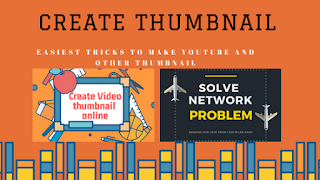
Example Of my Thumbnail created from there-


Some YouTube Tips

8. You can create your own custom URL.

Want to get an easy-to-remember web address to get on your YouTube channel? You can actually create a custom URL, which can be based on your display name, your YouTube username, a current wall street URL, or the name of your linked website. Hippaspot, for example, is https://www.youtube.com/hubspot. 

 Important Note: Before you do this, make sure that you are friendly, this is the custom URL that you want - because once it has been approved, you can not request to change it, or you can transfer it to others. Keep in mind that this is connected to both your YouTube channel and your Google+ identity. Unfortunately, not everyone is eligible for custom URLs. To get one, you have 100 or more customers, be at least 30 days, have uploaded photos as your channel icon, and uploaded channel art. If you feel like, continue reading.

Some advanced tips and tricks of YouTube:

1. Canva.com-
This is a website form that you can create thumbnails for YouTube, Blogger, Facebook, Twitter, Presentation and many more. Either you can use a free or premium version to make your thumbnails more decorative. This is one of the very simple and best websites for making thumbnails online for all things.
Comment if you like and share
How to make

1. First, go to canva.com and log in there.

2. You can also log in to Facebook and Google account.

3. Just click the type of thumbnail you want to create.

4. Click on it and now choose 1 theme from 1 million topics.

5. You will have to pay money to get the premium.

6. After downloading, just click on the download and choose what type of image you want i.e png and others. This will save those pictures in your downloads. And enjoy now.
An example of my thumbnail created from there-
Some YouTube Tips

8. You can create your own custom URL.
Want to get a memorable web address to go to your YouTube channel? You can actually create a custom URL, which can be the name of your display name, youtube username, an existing wall street URL, or the name of your linked websites.
Important Note: Before doing this, make sure you are friendly, this is the custom URL you want - because once you get it approved, you can not request to change it, or you can transfer it to others. can do. Keep in mind that this is linked to both your YouTube channel and your Google+ identity. Unfortunately, not everyone is eligible for a custom URL. To get one, you have 100 or more customers, at least 30 days, have uploaded the photo as your channel icon and uploaded channel art. If you feel like this, then continue reading.
360-degree video

360-degree videos on YouTube provide an immersive experience for those who want to find those places where they might be interested to swim with sharks, ride a cable car in Switzerland or live in natural history And see the breathing dinosaur museum in London

2.) VR video on youtube
Youtube
Youtuber

Virtual and increased reality has become a trend force over the past few years. YouTube VR is another immersive way to experience YouTube videos. You can watch YouTube videos in virtual reality by tapping on the cardboard icon on 360-degree video on your mobile device and sliding your phone into a viewer like Google Cardboard or Daydream View Headset.

Check the icon next to the video watch page's thumbnails

I'm a big fan of the "Watch Later" playlist on YouTube. Every day, there are many instances where I want to watch a long YouTube video, but I can not do this during working hours. That's why I save those videos to the "watch later" playlist and watch them in the evening. You can add a video to the "watch later" playlist by tapping on the watch icon on the video thumbnail or by tapping on the "add" icon below the video on the watch page and marking the "Watch Later" playlist.

4.) Buy and rent movies on YouTube
Buy and rent movies

There may be times where you will be watching a movie. YouTube has a market that allows you to buy or rent movies on the forum. You can choose from new releases, award-winning films and even movies that are still in cinemas.

5.) Watch the video with captions
Caption features on YouTube

Sometimes when I watch TV, I like to turn off closed captions. Did you know that there are about 1 billion videos on YouTube that have automatic captioning features, including automatic translations? You can activate caption by going to setting and change it to any language that you want.

6.) Double tap to search
Double tap to search

YouTube recently launched a feature called Double Tap to Sec. When you double-tap the left or right of a video running on the YouTube app, it will rewind or fast-forward 10 seconds of the video.

7.) New Desktop Design
The new YouTube desktop experience

Youtube is working on a newly designed desktop experience Experience shows your favorite videos and creators. The new desktop experience will make YouTube more fun and easy to use. If you want to start using it now, you can sign up for a new desktop experience at youtube.com/newbefore before it is rolled roughly.

8.) Dark theme
A dark theme in the new YouTube desktop experience

The new YouTube desktop experience includes a dark theme. This feature will reduce the brightness on your computer while browsing YouTube. To make your background with dark themes, you can activate it from the account menu after signing up for the new YouTube desktop experience.


360-degree videos on YouTube provide an immersive experience for those who want to find those places where they might be interested to swim with sharks, ride a cable car in Switzerland or live in natural history And see the breathing dinosaur museum in London

Tuesday, May 8, 2018

How to show our websites in other search engines

Websites not showing in yahoo,  bing and internet explorer.


Reasons-
1. Google is most popular search engine so it allows small websites also.  But in order to show your websites on Yahoo and another internet explorer then you must need websites with more traffic. It depends on traffic, you just need to increase your traffic first.

Possible Solutions-

1. If you want to increase your traffic then we must have more followers on social media like- facebook, twitter and other. It will make your websites popular.
2. You can pay to increase your traffic.
3. If your friends and neighbor have websites or youtube channel then you can request him to promote your websites and traffic will automatically increase very much.
4. There are some free websites also form which you can increase your traffic a little bit.
Promote your website with Google AdWords
If you are new to website advertising and promotion, Google AdWords can be quite unapproachable. One of the biggest misapprehensions about the Google AdWords is that you need to spend a lot of money and time to make it valuable, especially if you are a small business with a limited budget. In this article, we will take a look at what Google AdWords is, how it works, how to use it efficiently.
What is Google AdWords?
AdWords is Google's online advertising platform that helps large business display ads on Google and its advertising systems. With Google AdWords, you generate ads for your business and choose when your ads will appear. For example, you can choose to display your ads on Google search results, such as:


The main idea behind AdWords is keywords. When you create an ad, you select the keywords you want to target. These keywords generate Google to display your ad when someone surrenders to search on Google.
Watch this "what'sAdWords" video by Google

Submitting sitemaps to Yahoo.

  1. .Log into the Yahoo account.
  2. Navigate to Yahoo Site Explorer.
  3. Add your website to Yahoo by copy-pasting site's URL and then click on Add My Site. Be sure to ensure that you are the owner. To submit a sitemap, verification must be done first, otherwise, the sitemap will not be posted.
  4. Press your website URL and click on feed links in right columns.
  5. Paste your sitemap URL and let the drop down “Website Feed.” Click Add Feed afterward.
  6.  The Yahoo team will also investigate and valid sitemaps and sites. This site will start indexing as soon as they determine that Sitemap is efficient and impeccable.

 *** New Update: Yahoo has been replaced with bing webmaster tools.

Log in to Windows Live Account. 

Submitting sitemaps to Bing.

  1.   Navigate to the Bing Master Center.
  2.  Add your websites to bing by filling the URL bar with the sitemap URL, press add site.
  3.  The Bing staff will investigate and verify the sitemap and site. Whenever they determine that the sitemap is impeccable, they will start indexing the site.


One advance Tips and Tricks-
Main things is that promote your websites with ads words and make more traffic and enjoy your websites on Yahoo and another internet browser too.

Trending Offer- If you want me to create your websites then it's the cheapest price. I am giving this offer for 1 month. If you want then comment me.
1. websites fee- 3 $ only for one month 
 Features- 
1. Seo based,
2, Attractive looks.
3. Adsense based.
4. Maintenance. 
Note- More information will be given while you comment.